With Stackfield’s paid OFFICE add-on, you can create, open, and edit office documents (such as text documents, spreadsheets, and presentations) directly in Stackfield. Live editing is available in the desktop version of Stackfield (browser and desktop app) and can be used both individually and as a team.
Without the OFFICE add-on, you can still embed and work with files as described in the article "Working with files".
Creating a new file
In addition to uploading existing files, the OFFICE add-on allows you to create completely new documents in both the desktop apps and the browser version of Stackfield. You can do this anywhere you can upload a file – including the modules "Communication", "Tasks", and "Files", as well as all chats and comment sections.
Note: To create new files in a room, the "Files" module must be enabled for that room. No matter where a new document is created, all documents are stored centrally in the "Files" module of the corresponding room.
Creating new files in the "Communication" module
In the "Communication" module, you can create new documents using the grey "plus" icon. After clicking it, select "File". In the list that appears, choose "New Document", "New Table", or "New Presentation" to create the document you want. The selected item is then created automatically, opened, and can be edited right away.
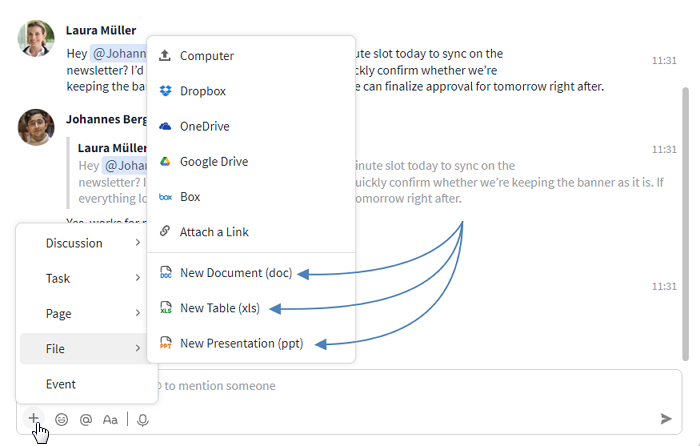
Create new documents in the Communication module
Creating new files in the "Files" module
In the "Files" module, you can create a new document using the blue plus icon. After clicking it, you can choose between "New Document", "New Table", and "New Presentation". The selected document is then created, opened automatically, and can be edited right away.
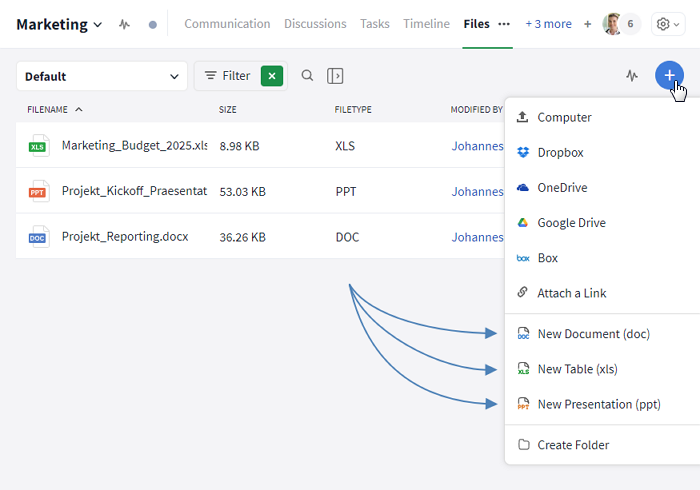
Create new documents in the File module
Creating new files in comment sections
In the comment section (e. g., in tasks), you can create a new file as an attachment using the paperclip icon. After clicking it, a selection appears where you can choose "New Document", "New Table", or "New Presentation".
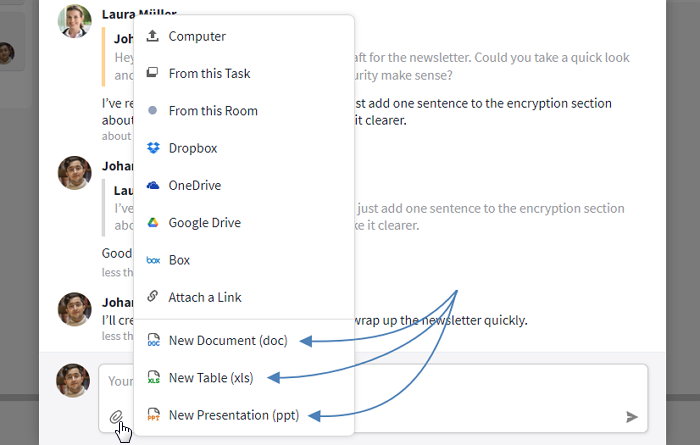
Create new documents in the comment section of tasks
The document is then inserted into the comment. Once the comment is published, the document appears in the comment thread and can be opened and edited using the "Edit" button.
Live editing files
In the communication history:
Live editing is started by clicking "Edit". This option is available in the communication history below every uploaded document, as long as the file type is supported for live editing in Stackfield. This selection replaces the "Edit locally" option.

Compatible files can be edited directly via "Edit"
In the "Files" module:
Alternatively, this function can also be accessed in the overview of the "Files" module by right-clicking on an Office document and selecting "Edit document". In both cases, you will then be asked how you would like to edit the document.
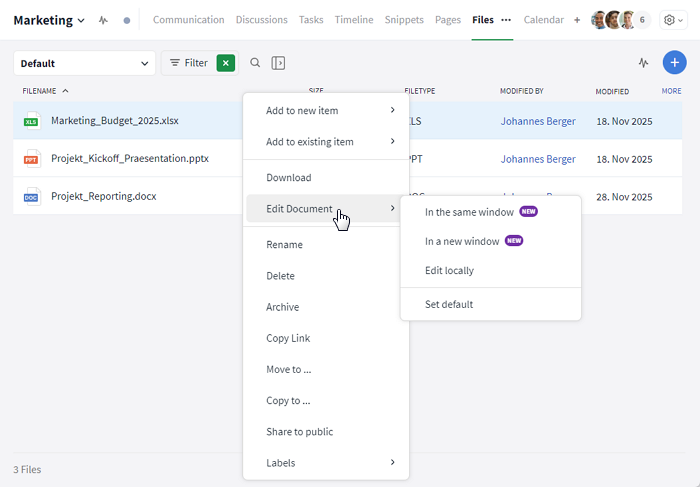
Stackfield users can choose how a document should be opened
The following options are available:
- In the same window: Opens the document in the same window you are currently working in. This applies whether you are using the desktop app or Stackfield in your browser.
- In a new window: Opens the document in an additional Stackfield window in your default browser. This also happens if the document is opened via the desktop app.
- Edit locally: Downloads the document from Stackfield and opens it outside of Stackfield in the default program set for that document type.
- Set default: Lets you choose which of the three opening options will be used by default when you click a file. This setting can be changed at any time. It only applies to your personal Stackfield account.
In the "Files" module, compatible documents can also be edited directly by clicking the pencil icon that appears when you hover over the file (see the screenshot below).
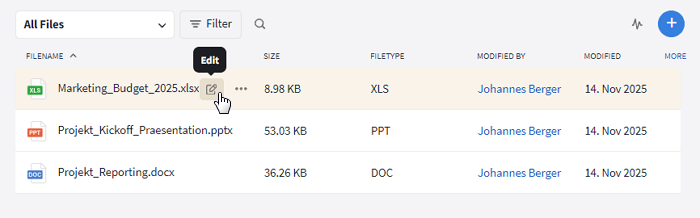
In the "Files" module, file editing is opened via the pencil icon.
In the open file:
Lastly, live editing can also be accessed via the preview in the open file. In the sidebar at the top of the preview view, the option "Edit this document" is available. This option always opens the document in the same window.
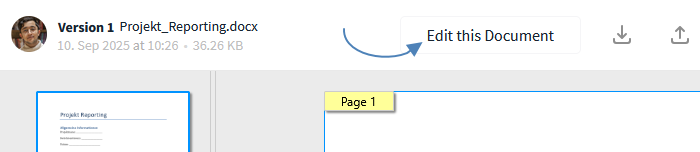
Switch from preview view to live editing.
Live editing text documents
Supported file formats: .doc, .docx, .odt
When editing text documents in Stackfield, you have access to a range of features comparable to common word processing programs. This allows you to format and design documents flexibly.
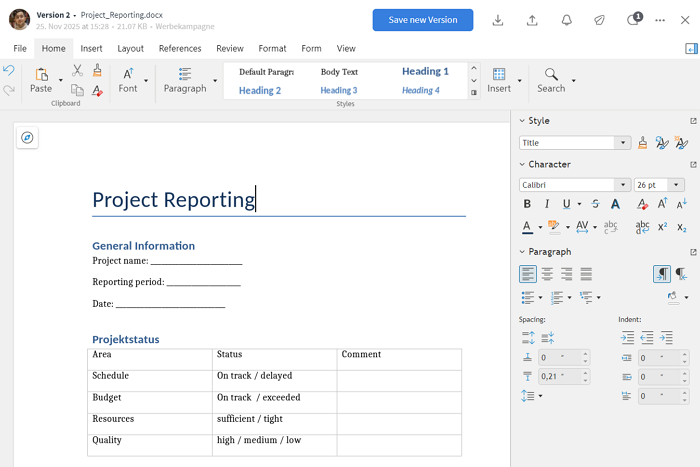
Example view of live editing for text documents
Available features include using different fonts and font sizes, inserting shapes, images, charts, and tables (see the note above), as well as exporting to other file formats such as PDF. With the integrated versioning feature, you can access earlier versions at any time.
Live editing tables
Supported file formats: .xls, .xlsx, .ods, .csv
Tables can be opened and edited directly in Stackfield. This means you can maintain and evaluate these files without any additional software.
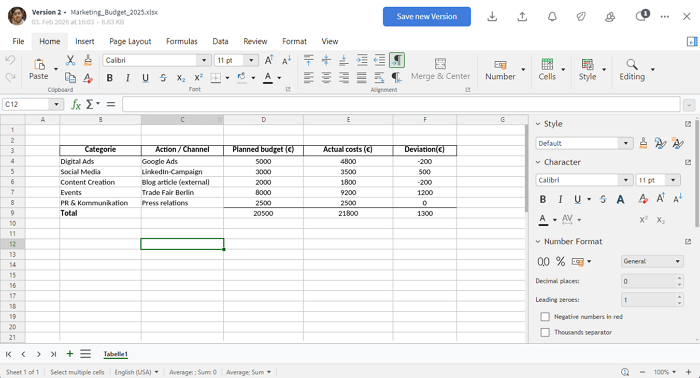
Example view of live editing for tables
In addition to basic calculations, advanced features such as array formulas, pivot tables, and dynamic charts are available. This makes it possible to create both simple overviews and complex evaluations.
Live editing presentations
Supported file formats: .ppt, .pptx, .odp
A wide range of features is available for presentation documents. Slides can be created using different layouts and adjusted flexibly to fit your content.
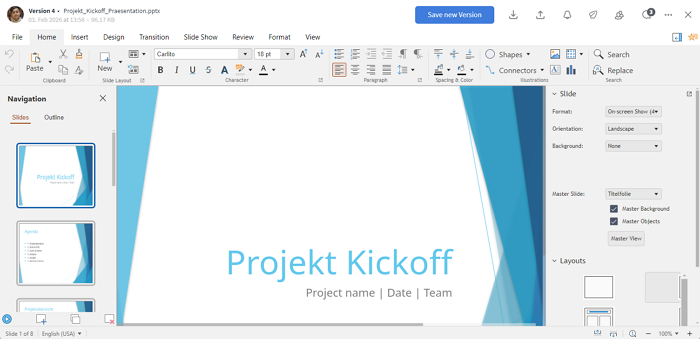
Example view of live editing for presentation documents
In addition to the basic features, advanced functions are also supported, including animations, transitions, embedded multimedia content, and charts. This allows you to create both simple informational slides and more comprehensive presentations.
Presentations uploaded to Stackfield can also be viewed and presented directly within the tool, without requiring any additional software.
Working on an office document simultaneously
All files that can be modified via live editing can be edited by multiple people at the same time. To do so, each user who wants to collaborate opens the document individually via "Edit document". In the editing view that appears, you can see in the top-right corner who is currently working on the document.
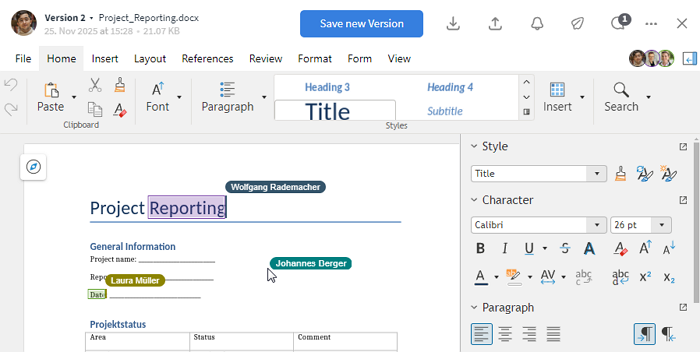
Documents can be edited by multiple people at the same time.
Collaborative editing is available at any time and does not require any additional steps. If other users make changes to the document, their name is displayed while you are editing. All changes are visible to everyone involved immediately.
Additional features
Saving and versioning
During live editing, there are two ways to save the current state of a document: Save as draft and save as version.
When editing a document, it can be closed via the "X" in the top-right corner. A pop-up will then appear.
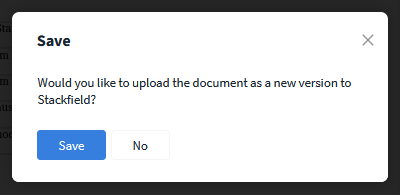
When closing a document, a new version can be created at the same time
Save version:
Clicking "Save" creates a new version of the document (see Versioning). This is recommended if a specific (intermediate) state should be preserved permanently, previous versions need to be reviewed, or an export is required.
Alternatively, a new version can be created at any time via the blue "Save new version" button in the editing view.
Save as draft:
Clicking "No" saves the current state of the document, including all changes, as a draft. The draft is visible to all users and is marked with an orange "Draft" label. This also applies when multiple people are editing the document simultaneously.
Only the most recent draft version is available. It is retained even if Stackfield is closed or the device in use is switched off. Previous draft states are not available.
Note: Previous versions of a document can be accessed and downloaded at any time via the preview. Live editing, however, is only possible in the current version. If an earlier version needs to be edited collaboratively again, it must be re-uploaded.
Deleting an office document
Office documents can be deleted via the MORE button (three dots icon) in the top-right corner of the editing screen. For security reasons, permanent deletion is only possible for the person who originally uploaded the document to Stackfield. When an office document is removed, all associated versions are deleted as well.
Individual versions of a live document can also be removed. Deleting a version is only possible for the person who created or saved that specific version.
Options for admins
Further articles
File sharing
In the organization settings under the Permissions tab, you can define which users (or roles) are allowed to share files via a public link.
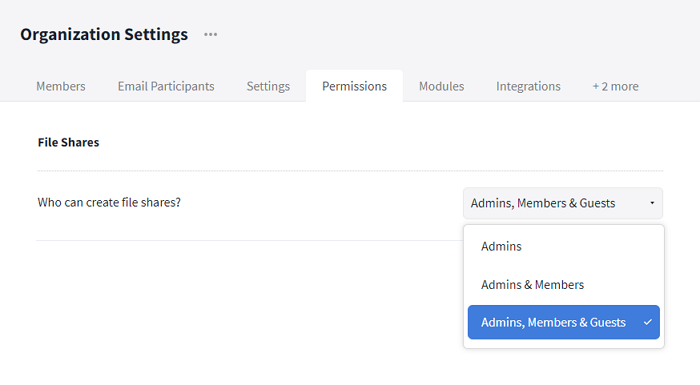
Organization settings: Share files via a public link
Supported file types for live editing
The following file types are available for creating and / or live editing with the OFFICE add-on:
- Text documents: .doc; .docx; .odt
- Tables: .xls; .xlsx; .ods; .csv
- Presentations: .ppt; .pptx; .odp
Try the OFFICE add-on for free
You can try the OFFICE add-on in Stackfield for free before booking it – both as an existing Stackfield user and as a new user. This is possible via a free trial organization, where the office integration is enabled for a period of two weeks.
For users in the Stackfield trial phase
Users who are trying Stackfield for the first time and start a trial phase will have access to the OFFICE add-on during the two-week trial period, among other features. More information is available HERE.
You can start a trial phase as follows:
- Open the Stackfield registration form.
- Enter your login details and organization information.
For Starter or Business plan users
Starter or Business plan users can test the OFFICE add-on by creating a new trial organization in Stackfield. To do so, follow these steps:
- In the Stackfield sidebar, below the organization name, click + "Add new".
- Select "New organization ...".
- Enter an organization name and create the trial organization.
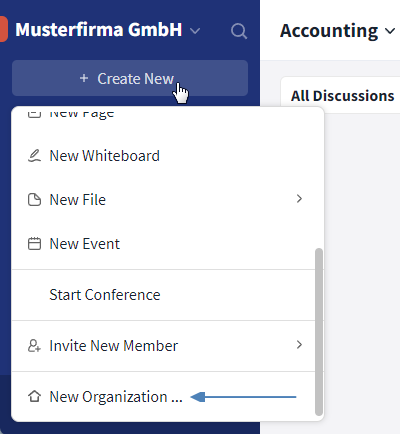
Create a new trial organization
The newly created organization can then be accessed via the organization overview. You can switch between organizations at any time.
For Premium plan users
Premium plan users can not only create a new trial organization, but also start a trial phase for the OFFICE add-on directly from the organization settings:
- Open the organization settings and navigate to the "Integrations" tab.
- Under "Collabora ...", click the grey "X" button.
- An info window will open. Click the blue "Start Collabora trial" button to start the trial phase.
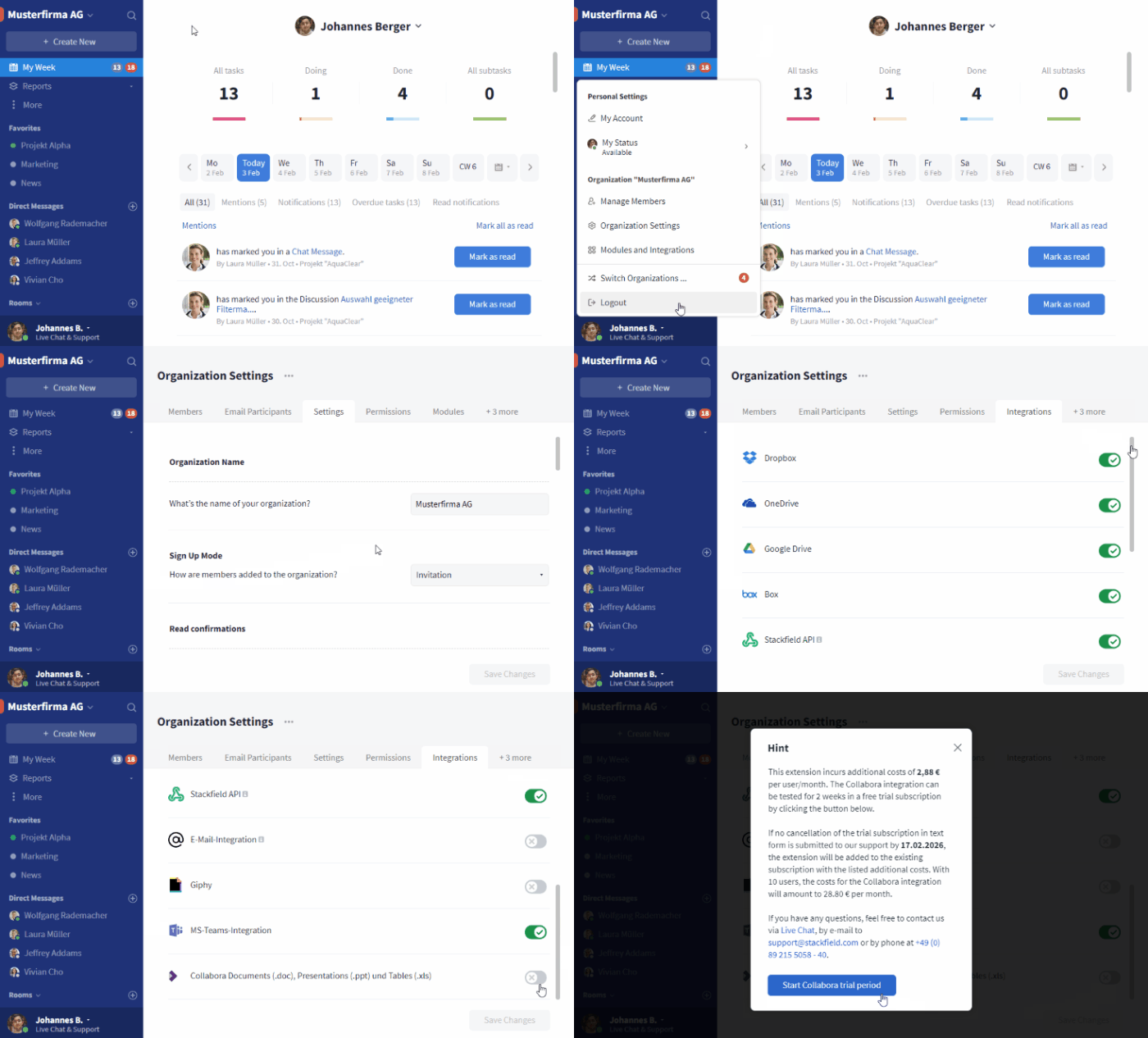
Start a new trial phase for the OFFICE add-on in the Premium plan
This trial phase starts directly in your existing instance – you do not need to create an additional organization for this option. More information about the conditions of this trial phase can be found in the pop-up in Stackfield.
For Enterprise plan users
Enterprise plan users who would like to test the OFFICE add-on can contact our Support team.
Booking the OFFICE add-on
When subscribing to the Premium plan, the OFFICE add-on can be selected directly ("Yes" button) or deselected ("No" button). For existing customers on the Premium plan, the booking is completed after the trial has been concluded.
For other plans, or if a Stackfield contract already exists, please contact our support team to add the OFFICE add-on.
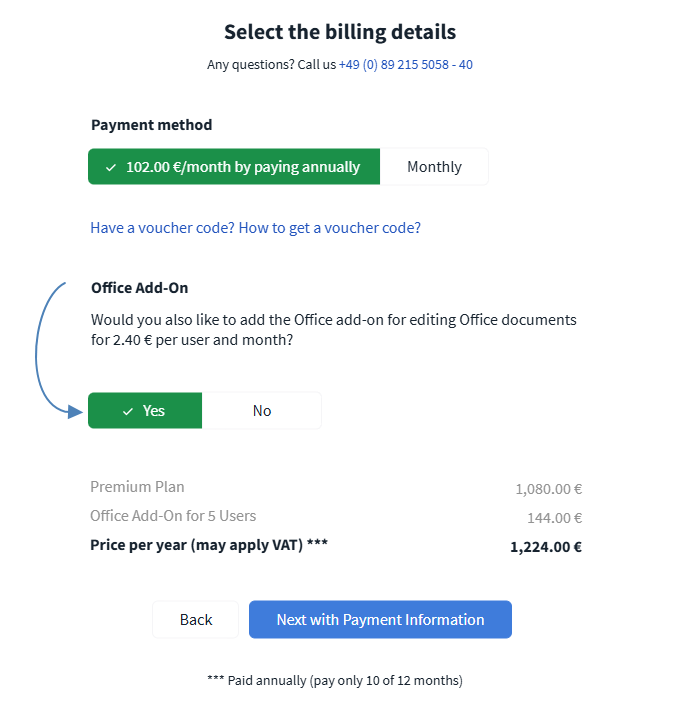
An example of what booking the OFFICE add-on looks like during the booking process
Existing Premium plan users who would like to add the OFFICE add-on to their plan can contact our Support team at any time.
Note: There are no additional costs beyond the fees for the OFFICE add-on itself (e. g., for extra licensing). The OFFICE add-on already includes all costs required for its use.
Security / encryption
Data protection and data security are top priorities at Stackfield. The same applies to the OFFICE add-on.
Even though this integration uses technology provided by Collabora, it is fully embedded into the Stackfield infrastructure. This ensures the same high level of data protection and information security as you are used to.
No additional software, plugins, or clients are required. When using the add-on, no data is shared with Collabora as the software provider.
Enabling / disabling the add-on
An existing subscription to the OFFICE add-on can be temporarily disabled and re-enabled at any time via the organization settings. The subscription itself remains unchanged.
The option is located in the Integrations tab. You can change the add-on status using the toggle next to "Collabora ...":
- A green check mark indicates that the OFFICE add-on is enabled.
- A grey "X" indicates that the OFFICE add-on is disabled.
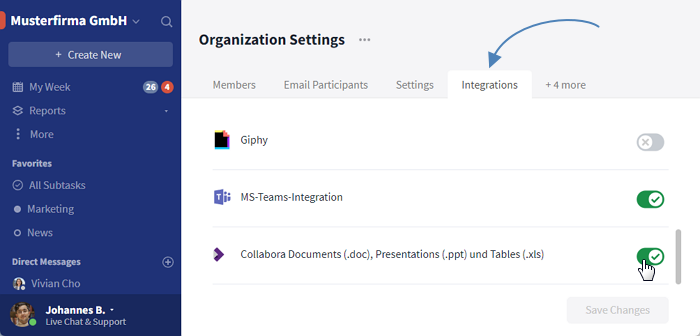
Enable / disable the OFFICE add-on in the organization settings
By toggling the switch again, the grey "X" will change back to a green check mark and the OFFICE add-on will be available again. If you have questions about contract changes or this functionality, the Stackfield Support will be happy to help at any time.