With the help of templates for subtask lists, users can save individually created subtask lists and insert them as often as required (even retroactively into already existing tasks).
This function is preferable to a task template if the exact composition varies and / or is not yet known at the beginning when the task is created. For example, if a support ticket is created automatically (via API or Email integration) and it only becomes clear which further steps are necessary for processing after the content has been checked. Who can see, use and edit these templates is regulated by the rights group.
How do I create a template for a subtask list?
Create subtask list
A template for a subtask list can be created in any task by clicking on the list icon ("Subtasks" on mouseover), followed by the selection "New subtask list". A new subtask list then opens, which can be filled in as required with the information to be included in the template.
Alternatively, a new subtask list can also be created by selecting the "Use a template" option. In the following window, a new subtask list can also be opened and filled by selecting the "Empty Subtask List" option.
Convert created entry to template
The subtask list can then be converted into a template. This is possible via the More button (symbol: three dots), which appears when you move the mouse over the title of the subtask list.
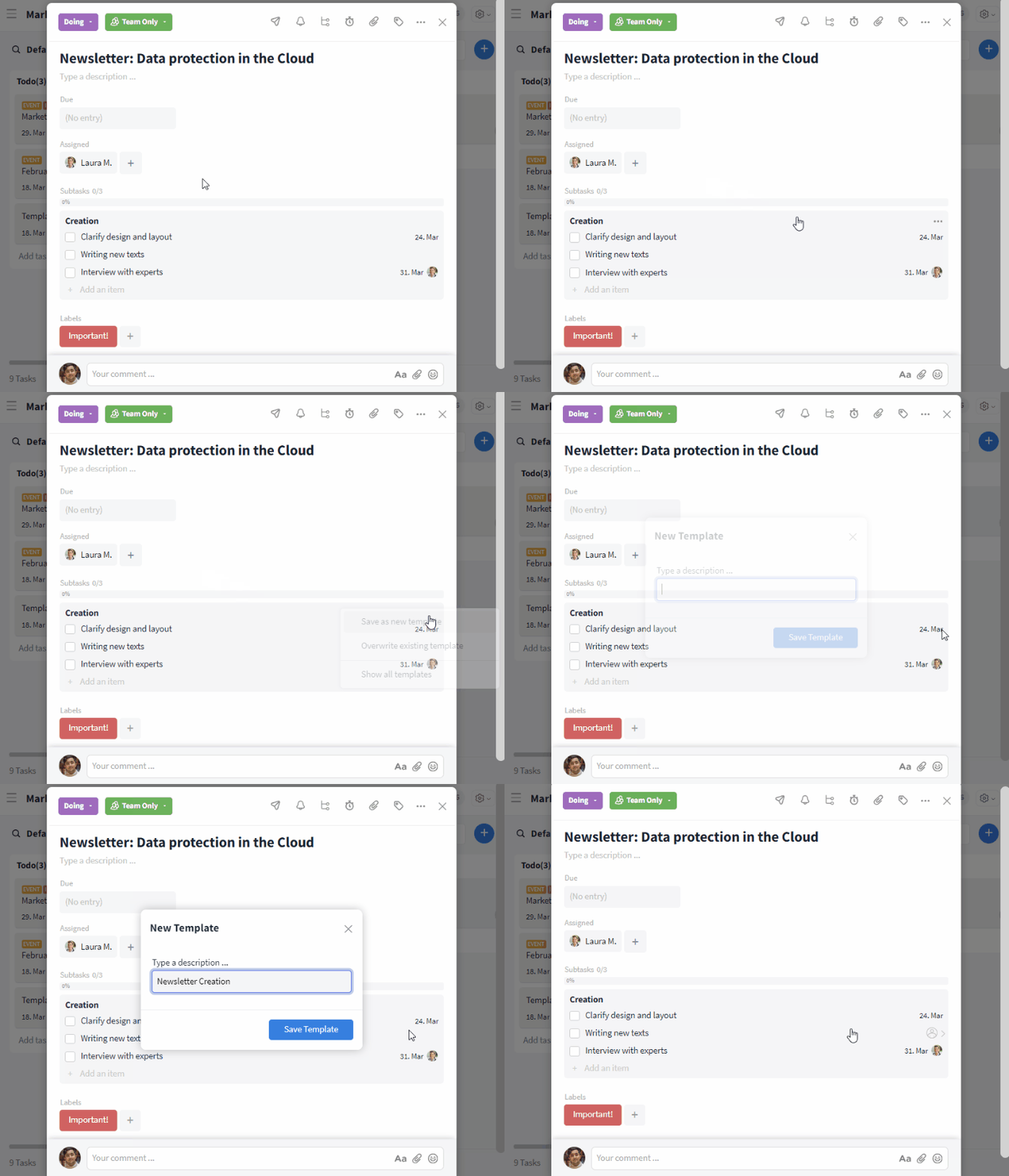
Save subtask list as a template
The "Save as new template" option can now be selected with a click in the following menu before the template is finally saved by clicking on "Save template".
What content is adopted?
Templates for subtask lists contain all the content stored in the lists – including, for example, assigned users (1), attached files (2), links (3) and dates (4). When a new subtask list is created from a template, this content is automatically transferred.
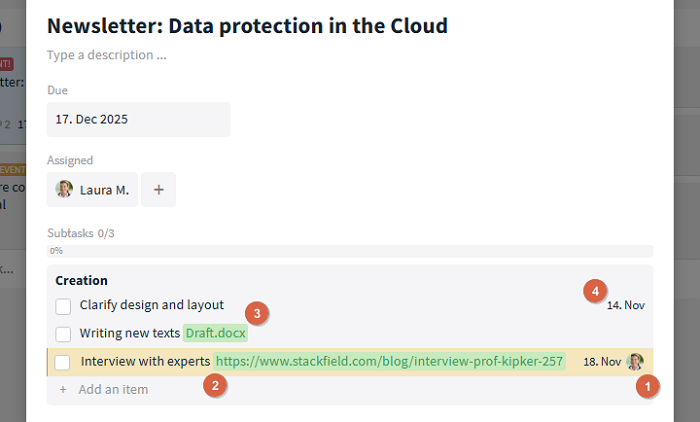
Templates for subtask lists adopt stored content
If a subtask list is created from a template, comments can be added to this subtask list afterwards.
Where can I find the template overview?
The overview of saved templates for subtask lists can be opened in each task in the room in which the template was created. To do this, click on the subtask icon ("Subtasks" on mouseover) in the top right-hand corner of the open task, followed by selecting the "From a template" option. This opens a window in which the templates can be selected and edited.
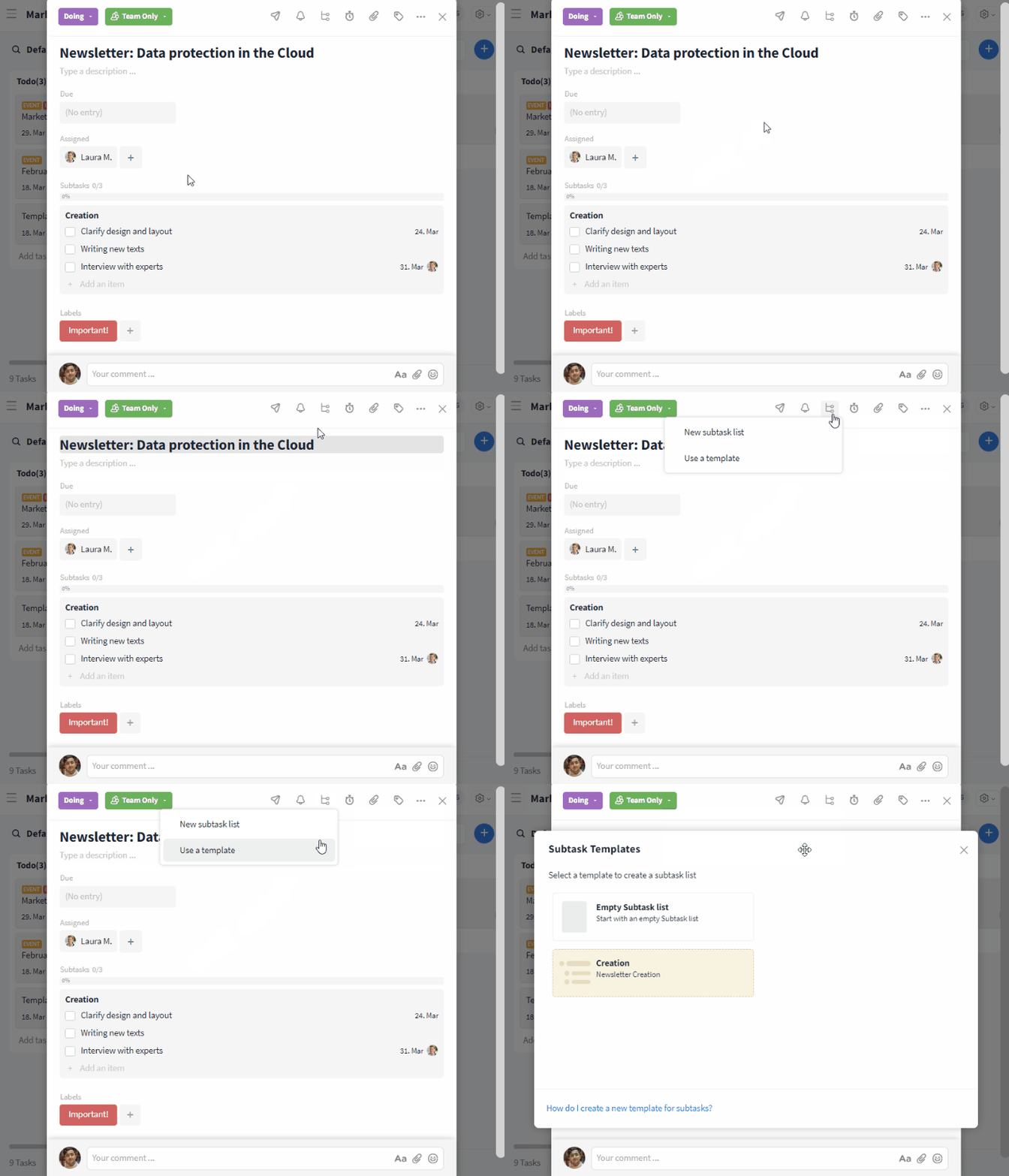
Display the template overview
How do I use a subtask list template?
To integrate a subtask list based on a template into a task, first open the desired task. In the overview of subtask list templates, click on the desired template to select it. The subtask list is then added to the task and can be modified or extended as needed.
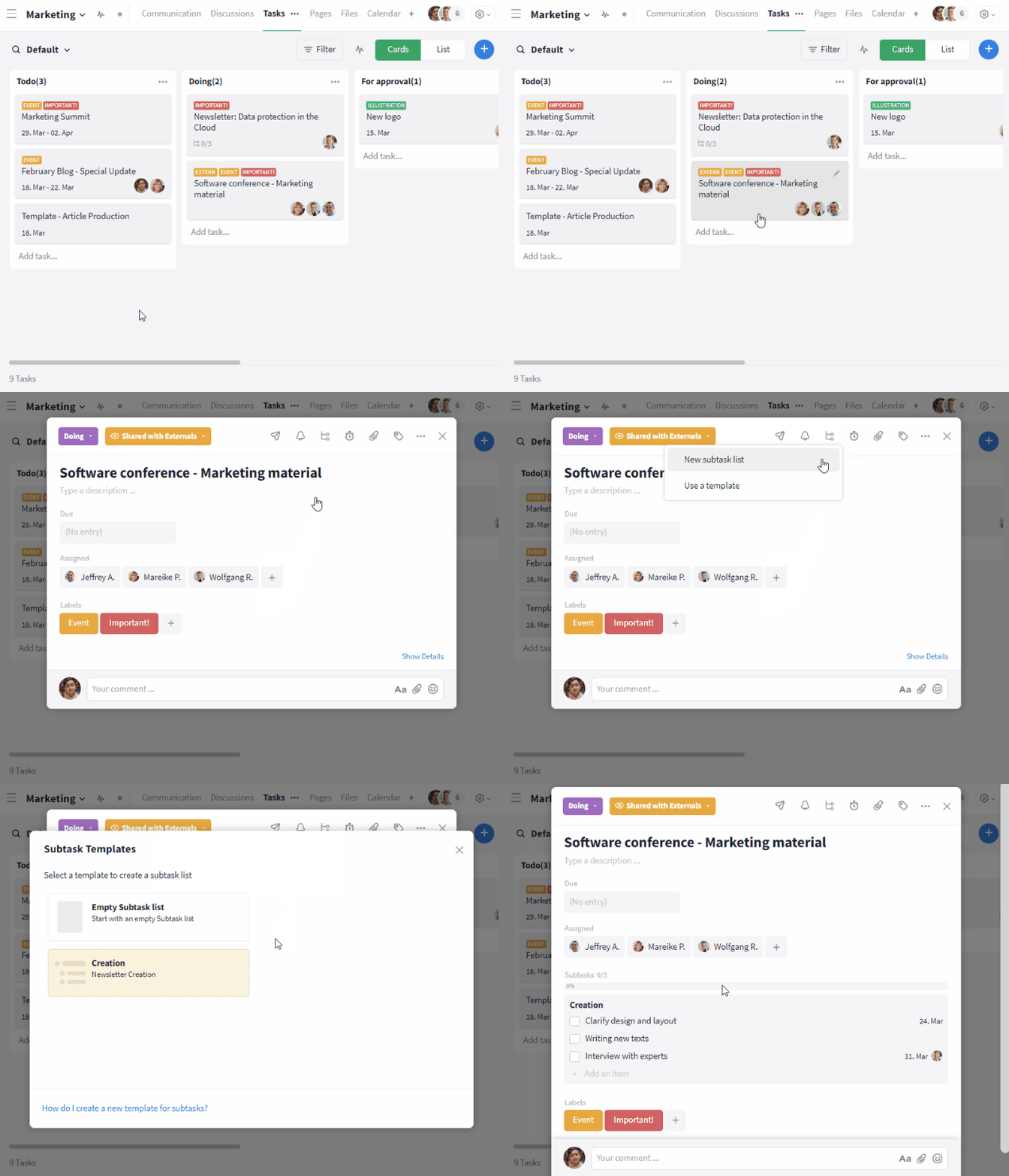
Applying a template in a task
Editing and deleting templates for a subtask list
How do I edit a template for a subtask list?
The content of existing templates for subtask lists can be adapted. To make changes, click on the pencil icon in the top right-hand corner of the overview of task templates in a room when hovering over a template.
After opening the template, the contents can be changed as required. The changes are saved by clicking on "Save changes". By clicking on "X", the changes can also be discarded.
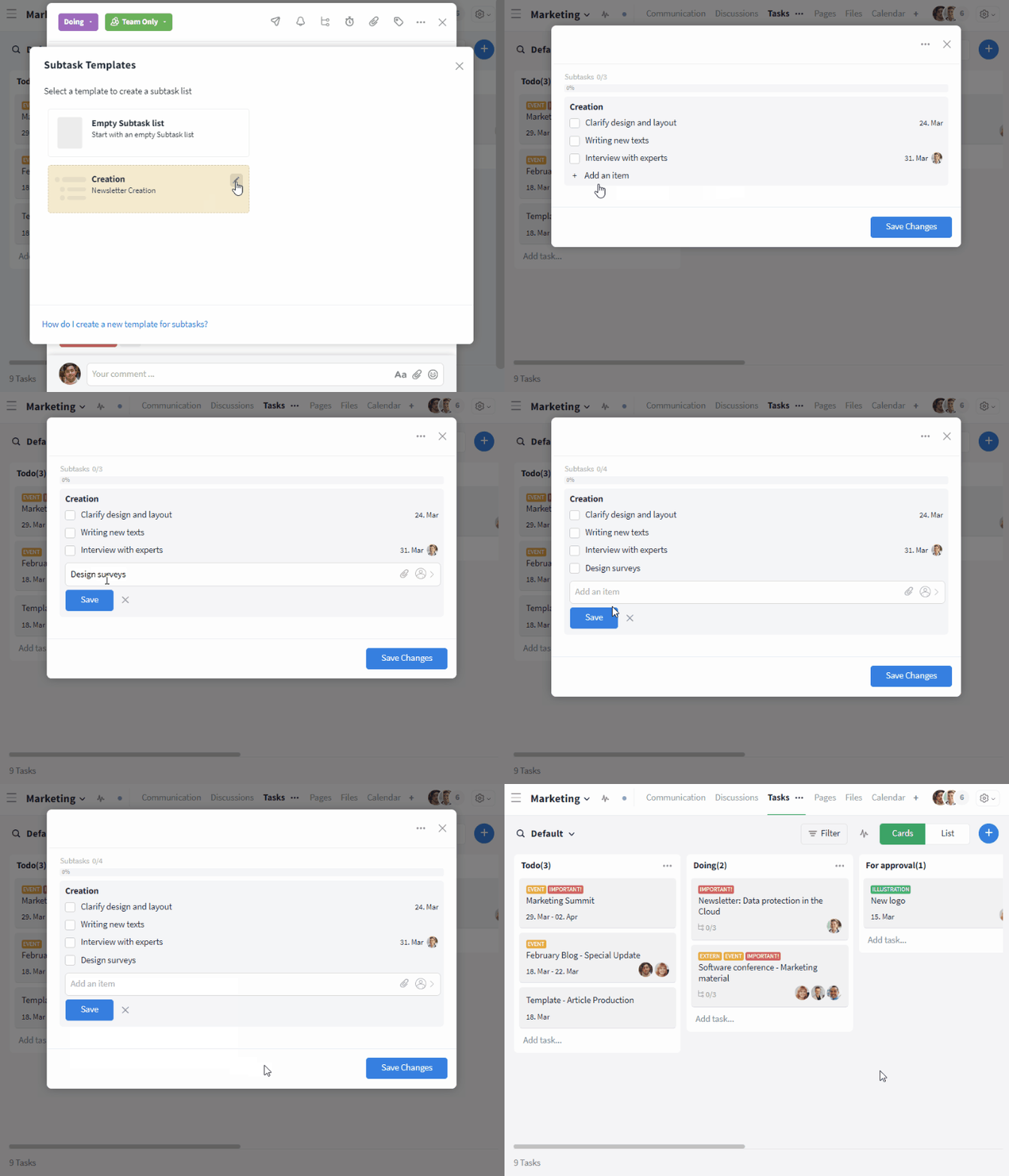
Editing a template for a subtask list
How do I delete a template for a subtask list?
In the editing mode of the template for a subtask list, you can delete the template using the More button (symbol: three dots) at the top right.
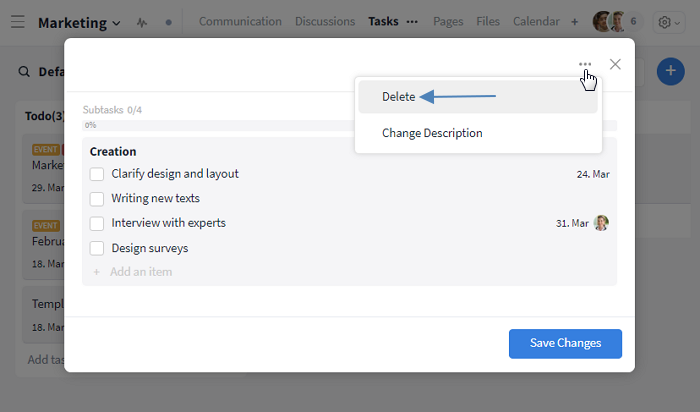
Deleting a template for a subtask list
Note: Deleted templates are permanently removed and not placed in the recycle bin.
Further articles
Options for admins
Define rights groups
In general, all permission groups within a room that can create tasks are also able to create new task templates and use existing ones. The parent task’s permissions also apply to templates for subtask lists.
By default, users with the roles "Admin", "Member", and "Guest" have access to subtask templates and can create their own templates. Users with the "External" role do not have access to subtask templates and cannot create their own. Admins can change these role permissions globally in the organization settings.